Book
Class
Transfer
Report
Student
User
| Index | Support |
|
Main Book Class Transfer Report Student User |
Click Setup to see your district contact or
|
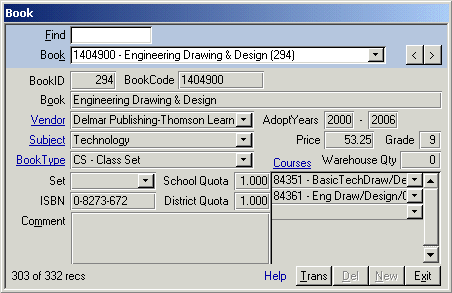 Updates info about books. Click Book from the Main menu. Locate a book with the Book combo box.
If you enter a value in the Find box
at the top of the form, the Book combo box shows only those books where the find string is in the
BookCode, Book or BookID. Enter the BookCode, Book and AdoptYears. Select Vendor, Subject and BookType.
Enter the Price and Grade. If the book is part of a set, select the main book in the set.
Enter SchoolQuota, ISBN, DistrictQuota and comment. Select the Courses in which the book will be used.
You can view more info about the Subject, BookType and Courses by clicking the hyperlinks. Click the
Trans button at the bottom of the form to view transactions for this book.
Updates info about books. Click Book from the Main menu. Locate a book with the Book combo box.
If you enter a value in the Find box
at the top of the form, the Book combo box shows only those books where the find string is in the
BookCode, Book or BookID. Enter the BookCode, Book and AdoptYears. Select Vendor, Subject and BookType.
Enter the Price and Grade. If the book is part of a set, select the main book in the set.
Enter SchoolQuota, ISBN, DistrictQuota and comment. Select the Courses in which the book will be used.
You can view more info about the Subject, BookType and Courses by clicking the hyperlinks. Click the
Trans button at the bottom of the form to view transactions for this book.
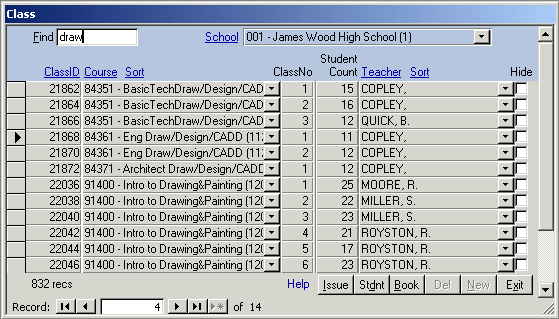 Updates info about classes. Class info is imported so changes will be overwritten in the next update.
Click Class from the Main menu. Select a school and scroll or PgDn to find a class.
If you enter a number in the Find box, the cursor moves to the record with that ClassID.
If you enter a word in the Find box, the records are filtered to show only records whose
Course or TeacherID match the word. By clicking the Sort hyperlinks you can sort the records
by ClassID (default), Course or TeacherID. You can select a Course, ClassNo, StudentCount and Teacher.
The Course and Teacher hyperlinks show more info about the selected course or teacher.
Super users can check Hide to keep the class from appearing to school Users. This is useful for classes
that don't normally have books, like lunch hour, are imported. Click Issue to automatically
issue books to all members in the class. Click Stdnt to open the Student form for this class and
issue or return books individually. Click Book to open the ClassBook form to see quantity of books
required and on hand.
Updates info about classes. Class info is imported so changes will be overwritten in the next update.
Click Class from the Main menu. Select a school and scroll or PgDn to find a class.
If you enter a number in the Find box, the cursor moves to the record with that ClassID.
If you enter a word in the Find box, the records are filtered to show only records whose
Course or TeacherID match the word. By clicking the Sort hyperlinks you can sort the records
by ClassID (default), Course or TeacherID. You can select a Course, ClassNo, StudentCount and Teacher.
The Course and Teacher hyperlinks show more info about the selected course or teacher.
Super users can check Hide to keep the class from appearing to school Users. This is useful for classes
that don't normally have books, like lunch hour, are imported. Click Issue to automatically
issue books to all members in the class. Click Stdnt to open the Student form for this class and
issue or return books individually. Click Book to open the ClassBook form to see quantity of books
required and on hand.
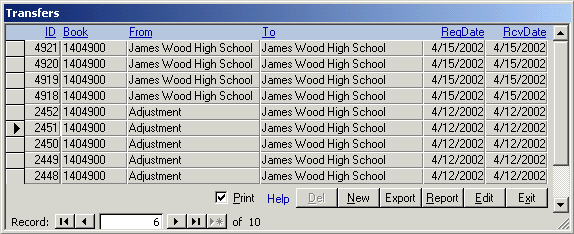
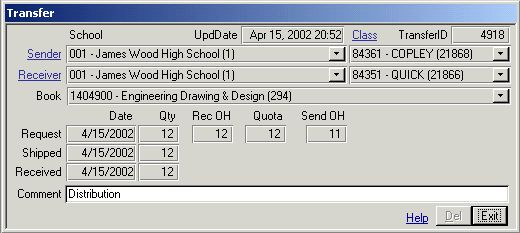 Creates transfer transactions to move books into or out of district, or between schools.
Click Trans from the main menu to open the Transfers form. Click the ID, Book, From, To,
ReqDate or RcvDate hyperlink to sort by that field. Select an existing transaction from
the Transfers form. Double click the TransferID or click Report to print the Transfer
report for a completed transfer or click Edit to view the Transfer form. Click New to
create a new transfer.
Select the Sender and Receiver school. Special schools include the Warehouse, External
Order for ordering new books from the state, and Adjustment to account for a physical loss
or to adjust the system to match a physical inventory. If you are using Teacher/Class
or Student accountability, select the Class too. The form shows the receiving and
sending school/class quantity on hand to help you make good decisions.
Select a book and enter a request quantity. Enter a comment particularly
if one of the schools is Adjustment. When the sending school (or warehouse)
ships the book, fill in the shipped quantity. The receiving school/class
should enter the received quantity to acknowledge receipt. If you enter a
received quantity and the shipped or request quantity is blank, they
will be set to the received quantity. Print the Transfer report from the
Transfers form by clicking Report. The TransferID uniquely identifies
the transfer in the system. Do not delete a transfer after the book has
been shipped. The balance on hand at both sending and receiving school
will be affected. Instead, create another transfer moving the book back
with a comment.
Creates transfer transactions to move books into or out of district, or between schools.
Click Trans from the main menu to open the Transfers form. Click the ID, Book, From, To,
ReqDate or RcvDate hyperlink to sort by that field. Select an existing transaction from
the Transfers form. Double click the TransferID or click Report to print the Transfer
report for a completed transfer or click Edit to view the Transfer form. Click New to
create a new transfer.
Select the Sender and Receiver school. Special schools include the Warehouse, External
Order for ordering new books from the state, and Adjustment to account for a physical loss
or to adjust the system to match a physical inventory. If you are using Teacher/Class
or Student accountability, select the Class too. The form shows the receiving and
sending school/class quantity on hand to help you make good decisions.
Select a book and enter a request quantity. Enter a comment particularly
if one of the schools is Adjustment. When the sending school (or warehouse)
ships the book, fill in the shipped quantity. The receiving school/class
should enter the received quantity to acknowledge receipt. If you enter a
received quantity and the shipped or request quantity is blank, they
will be set to the received quantity. Print the Transfer report from the
Transfers form by clicking Report. The TransferID uniquely identifies
the transfer in the system. Do not delete a transfer after the book has
been shipped. The balance on hand at both sending and receiving school
will be affected. Instead, create another transfer moving the book back
with a comment.
 Adjustments - (Super User only). Adjustments between two dates by school. Enter start and
end dates and select district (default) or a school. You may sort the report by TransferID
(RequestDate), School or BookID. The report shows TransferID, RequestDate, QtyRequested,
BookCode, BookTitle, ReceivedDate, ReceivedQty, SendingSchool/Class & IDs, ReceivingSchool/Class
& IDs and Comment. Footer counts number of adjustments. (rptAdjustment)
Adjustments - (Super User only). Adjustments between two dates by school. Enter start and
end dates and select district (default) or a school. You may sort the report by TransferID
(RequestDate), School or BookID. The report shows TransferID, RequestDate, QtyRequested,
BookCode, BookTitle, ReceivedDate, ReceivedQty, SendingSchool/Class & IDs, ReceivingSchool/Class
& IDs and Comment. Footer counts number of adjustments. (rptAdjustment)Book - Books by BookCode. Report shows BookID, BookCode, Book, Grade, BookType, AdoptYears, Price, Quota, Special (Bilingual/ESL/SSL) and SetID sorted by BookCode. If you check Details on the report form the next line shows Subject, ISBN, Vendor and UpdateDate. Footer counts number of BookIDs listed. (rptBook)
Book w/o Course - (Super User only). Books not assigned to a valid course. Report shows BookCode, Book, BookType and CourseID for the district sorted by BookCode. Footer counts BookIDs without valid course. (rptBookNoCourse)
Books by Class - Books by School/Class. Select a school or each school (default) and to show shortages, overages or all books (default). You may sort by BookCode or StateCourseNo. The report shows StateCourseNo, CourseNo, Course, BookCode, Book, BookType, ClassNo, ClassID, QtyAuthorized, QtyOnHand and QtyRequired to reach authorized. School and report footers counts Book/Class records, CourseID, BookID, ClassID and totals Auth, OH and Req.(rptClassBook)
Books by Course - Courses assigned to each Book by BookCode and StateCourseNo. Select District (default) or a school. Report shows BookCode, Book, BookType, StateCourseNo, CourseNo, Course and Updated date sorted by BookCode and StateCourseNo. Footer counts BookCourses. (rptBookCourse)
Books Issued to Student - Books assigned to a student. Select a school. Shows StudentID, Student, CourseNo, StateCourseNo, Course, CourseID, Class, Teacher, ClassID, BookCode, Book and BookID for each student sorted by student LastName and BookCode. Footer counts books per student. (rptStudentBook)
Books To Order - (Super User only). Books to order by school. Select district (default) or a school. Shows BookID, BookCode, Book, Quota, QtyOnHand, QtyRequired to reach quota, Cost each and ExtendedCost for book. Sorted by BookCode. Footer counts BookID and totals ExtendedCost. Use BooksByClass report to see which classes need the book. (rptBookShort)
Book Type - Shows BookType, Description, Count of BookIDs and Updated date for each BookType. (rptBookType)
Budget - Budget & balance by school. Enter StartDate and EndDate. Shows SchoolID, Type (High, Middle, Elementary or Admin), SchoolNo, School, Budget$, Books and $Value transferred in and out and Balance sorted by SchoolID. Footer shows budget, transferred books and dollars in and out and balance remaining for all schools and all non-admin schools. (rptBudget)
Budget w/o School - (Super User only). Budget not assigned to a valid school. Shows SchoolID, BudgetDate, BudgetAmount and Comment sorted by BudgetID. Footer shows total BudgetAmount. To fix: Change to a valid school on the Budget form or add the school on the School form. (rptBudgetNoSchool)
Class - Classes assigned to a school. Select a school or Each School (default). Shows StateCourseNo, CourseNo, Course, Subject, Grade, ClassNo, ClassID, StudentCount and TeacherCount sorted by StateCourseNo and ClassNo. School and report footers count classes. (rptClass)
Class Roster for Book - Students in a class who received each book assigned to the class. Select a school and class for that school. Shows student, StudentID, a signature line for each student in the class to sign for the book and a checkbox if the book was issued, sorted by LastName. The footer shows student count. (rptClassRoster)
Class w/o Course - (Super User only). Classes without a valid course. Select district (default) or a school. Shows SchoolNo, School, SchoolType, ClassID, CourseID, StudentCount, TeacherCount and TeacherID sorted by SchoolNo and ClassID. To fix: Select a valid Course on the Class form. (rptClassNoCourse)
Course - Courses assigned to school. Select each school (default) or a school. Shows StateCourseNo, CourseNo, Course, Subject, Grade, ClassCount, StudentCount, TeacherCount and date updated. Footer counts courses per school and report footer shows total school/courses in district. (rptCourse)
CourseBook - Books assigned to Course by StateCourseNo. Shows CourseNo, Course, CourseID, BookCode, Book, BookID, BookType and date book was assigned to course sorted by StateCourseNo. Footer counts CourseBook assignments. (rptCourseBook)
Courses In District - Courses in district sorted by StateCourseNo. Shows CourseNo, Course, CourseID, Subject, Grade, Class Count and date course record was last updated. Footer counts Courses in district. (rptCourses)
Excess Books - (Super User only). Books in excess of quota. Select EachSchool (default) or a school. Shows BookID, BookCode, Book, Quota, OnHandQty and Over by BookID for School. Footer counts books per school and total unique books for district. (rptBookExcess)
School - Schools by SchoolType and Name. Shows SchoolID, SchoolType, SchoolNo, School, Principal, Contact, Grades and InventoryDate. If you check Details, also shows Street, Phone, date School record was last updated, Comment and first user assigned to that school. Footer counts schools. (rptSchool)
School Inventory - Books assigned to school. Select EachSchool (default) or a school. Shows BookCode, Book, Quota and OnHandQty sorted by BookCode. Footer counts BookID, Quota and OnHandQty by school. (rptSchoolInventory)
Student - Students by school. Select EachSchool (default) or a school. Sort by Grade, StudentID or Name. Shows StudentID, StudentLastName, FirstName and Grade sorted by LastName and FirstName. Footer counts students. (rptStudent)
StudentCount - Student count by school and grade. Shows SchoolNo, School, SchoolID, StudentCount by grade and total students per school. Footer shows StudentCount by grade and total students for district. (rptStudentCount)
Subject - Book and course subjects. Shows SubjectID, Subject, Books and date Subject record was last updated sorted by Submect. Footer counts Subjects. (rptSubject)
Teacher - Teachers by school. Select EachSchool (default) or a school. Sort by TeacherID or Name (default). Shows TeacherID, LastName, FirstName and HomeRoom. Footer counts teachers. (rptTeacher)
Trans w/Invalid School/Class (Super User only). - Transfers with invalid or missing SchoolID or ClassID (default is current month). Enter Date range. Shows TransferID, RequestDate, QtyRequested, BookCode, Book, ShipDate, QtyShipped, ReceiveDate, QtyReceived, SendingSchool and ClassID, ReceivingSchool and ClassID and Comment. Sort is by RequestDate, ReceivingSchool and BookCode. Footer counts transfers. To fix these problems, assign to a valid class on the Transfer form or change to School/Course accountability on the Setup form. (rptTrans)
Trans w/o Book (Super User only). - Transfer without book between two dates by school. Enter date range (default is current month) and select EachSchool (default) or a school. Shows TransferID, RequestDate, QtyRequested, BookID, ShipDate, QtyShipped, ReceiveDate, ReceiveQty, SendingSchool, ReceivingSchool and Comment sorted by RequestDate, ReceivingSchool and BookID. To fix, select a valid BookID on Transfer form or add the BookID to the Book form. (rptTransBook)
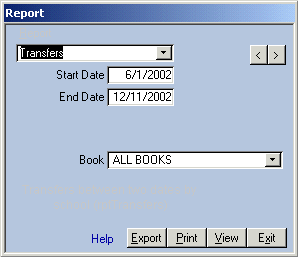
Transfers - Transfers between two dates by school. Enter date range (default is current month), select District (default) or a school and select AllBooks (default) or a book. Shows TransferID, RequestDate, QtyRequested, BookCode, Book, BookID, ShipDate, QtyShipped, ReceiveDate, QtyReceived, ShippingSchool, SchoolID, Course, CourseID, Class, ClassID, ReceivingSchool, SchoolID, Course, CourseID, Class, ClassID, and Comment. Records are sorted by RequestDate, ReceivingSchool and BookCode. Footer counts transfers. (rptTransfers)
Users (Super User only). - Users and school. Shows UserID, School, checkbox for Super user and last login sorted by UserID. Footer counts users and super users. (rptUser)
Vendor - Book vendors. Shows VendorID, Vendor, ContactName, Count of BookIDs this vendor provides, date Vendor record was last updated, Address and Phone sorted by VendorID. Footer counts vendors for district. (rptVendor)
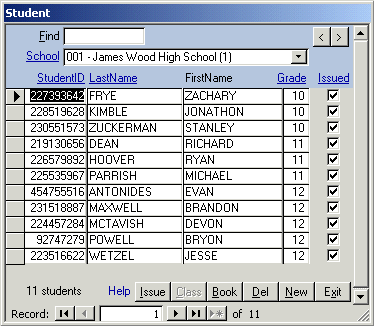 (Only available on Student accountability level). Click Setup, Student to open the form.
Select a school with the School combo box. Enter a StudentID or name to filter the list. Click the
hyperlinks for StudentID, LastName or Grade to sort the list by that field. Scroll down the students
to select a record. Edit StudentID, LastName, FirstName and Grade. Click the Class or Book button
to open the Class form for that student's classes or books. The Student table is normally imported.
Your changes will probably be overwritten upon the next import.
(Only available on Student accountability level). Click Setup, Student to open the form.
Select a school with the School combo box. Enter a StudentID or name to filter the list. Click the
hyperlinks for StudentID, LastName or Grade to sort the list by that field. Scroll down the students
to select a record. Edit StudentID, LastName, FirstName and Grade. Click the Class or Book button
to open the Class form for that student's classes or books. The Student table is normally imported.
Your changes will probably be overwritten upon the next import.
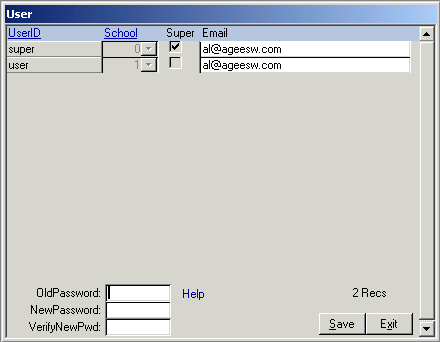 Click Setup, Maint, User to open. Super users can add or delete users or grant them Super privileges.
A Super user cannot delete himself or remove himself from Super status. A super user can only
change his/her own password, however a Super user can delete and recreate another user's record
and give it a password.Super users can see all reports and forms for any school.
Normally User access is adequate for school level and below. Users can click Setup to see all
users, their email and school, but can't change anything except their own email and password.
When a user is added or deleted, the MDW version is changed and everybody
on the network will be offered an update of that file when they login.
Click Setup, Maint, User to open. Super users can add or delete users or grant them Super privileges.
A Super user cannot delete himself or remove himself from Super status. A super user can only
change his/her own password, however a Super user can delete and recreate another user's record
and give it a password.Super users can see all reports and forms for any school.
Normally User access is adequate for school level and below. Users can click Setup to see all
users, their email and school, but can't change anything except their own email and password.
When a user is added or deleted, the MDW version is changed and everybody
on the network will be offered an update of that file when they login.